Expert Tips to Ensure a Seamless Connection with Your Wireless Auto Interface
A wireless CarPlay or Android Auto interface should feel invisible — you get in, your phone connects, and you’re navigating or streaming music before you’ve even pulled out of the driveway. Most of the time, that’s exactly how it works. But wireless connections depend on a few things going right behind the scenes, and a small number of easy-to-miss settings are behind almost every connection complaint we hear.
Here’s what our support team recommends to keep your wireless auto interface connecting quickly and staying connected.
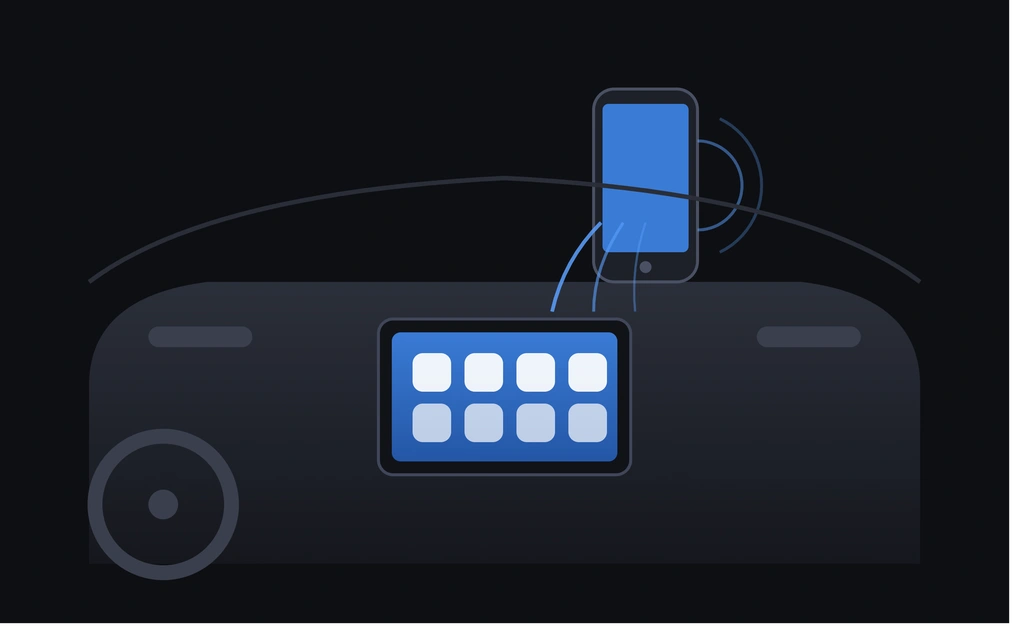
📶 1. Keep Both Wi-Fi and Bluetooth Enabled — Not Just One
Wireless CarPlay and Android Auto interfaces typically use Bluetooth to initiate the handshake and 5GHz Wi-Fi to carry the actual video and audio stream. If either radio is switched off — even briefly, like when a phone enters a battery-saving mode that disables Wi-Fi — the connection can drop or fail to reconnect automatically.
Tip: Check that your phone’s Wi-Fi and Bluetooth are both set to stay on, and that neither is restricted by an aggressive battery-saver profile.
🔋 2. Disable Aggressive Battery Optimization for CarPlay/Android Auto
Modern phones are increasingly good at killing background processes to save battery — which is great for battery life, but not great for a car interface that needs to maintain an active wireless link. On Android in particular, background data restrictions or “optimized” battery settings for specific apps can quietly interrupt the Android Auto connection.
Tip: On Android, exclude Android Auto from battery optimization in your phone’s settings. On iPhone, make sure Low Power Mode isn’t automatically triggered before you get in the car.
🌐 3. Watch Out for Wi-Fi Network Conflicts
Because wireless interfaces rely on a 5GHz Wi-Fi connection, your phone occasionally tries to prioritize a different saved Wi-Fi network over the car’s connection — especially if you’re parked near your home network or a workplace network with a strong signal.
Tip: If you notice inconsistent connections near a specific location, check your phone’s Wi-Fi settings and temporarily forget or deprioritize the conflicting network.
🔄 4. Forget and Re-Pair After a Phone or Software Update
Bluetooth pairing data doesn’t always survive a major iOS or Android update cleanly. If your interface suddenly stops reconnecting automatically after updating your phone, the fastest fix is usually to remove the old pairing entirely rather than troubleshoot around it.
Tip: Go into your phone’s Bluetooth settings, forget the interface’s Bluetooth device, then re-pair from scratch through your car’s CarPlay/Android Auto settings menu.
🚗 5. Give the Initial Handshake a Few Extra Seconds
The very first connection after starting your engine involves more back-and-forth than a reconnect — Bluetooth handshake, Wi-Fi negotiation, then CarPlay or Android Auto loading on top of that. Especially on colder starts or after your car has been sitting for a while, this first connection can take a few seconds longer than a typical reconnect.
Tip: Avoid restarting the car or toggling Bluetooth mid-handshake — interrupting the process is one of the most common causes of a “stuck” connection that then requires a full re-pair.
🔌 6. Keep Your Interface’s Firmware Up to Date
Like any connected device, wireless auto interfaces occasionally receive firmware updates that improve pairing stability, fix compatibility issues with newer phone software, or add support for the latest iOS/Android versions.
Tip: Check periodically (or after a major phone OS update) whether a firmware update is available for your interface, and install it promptly if so.
🛠️ 7. One Phone, One Active Connection
If multiple phones have been paired to the same interface over time — say, a partner’s phone or a previous owner’s — leftover pairing profiles can occasionally cause the interface to attempt connecting to the wrong device, or hesitate while it decides which paired phone to prioritize.
Tip: Periodically clean up old paired devices you no longer use, and make sure only the phones that actually ride in the car regularly stay on the paired list.
Still Having Trouble?
Most connection issues come down to one of the points above, but occasionally a stubborn pairing issue needs a closer look at your specific vehicle and interface combination. If you’ve tried the steps here and you’re still running into problems, our support team can walk through it with you directly — just reach out to auveto@gmail.com or message us on WhatsApp with your model and the specific behavior you’re seeing, and we’ll help get it sorted.